How to Fix Custom Wallpaper Not Applying or Resetting on macOS

1. Overview
This article provides a step-by-step solution for an issue on MacBooks where custom image files set as wallpaper (Desktop Picture) through System Settings are not applied correctly or are reset after a restart. After struggling with this minor but persistent issue for years, I finally found a solution and wanted to share it.
2. Test Environment
| Item | Details |
|---|---|
| Model | MacBook Air (M1, 2020) |
| Chip | Apple M1 |
| OS | macOS Sequoia 15.1 |
3. The Problem
When trying to set a custom image as wallpaper on my MacBook, I encountered the following problems:
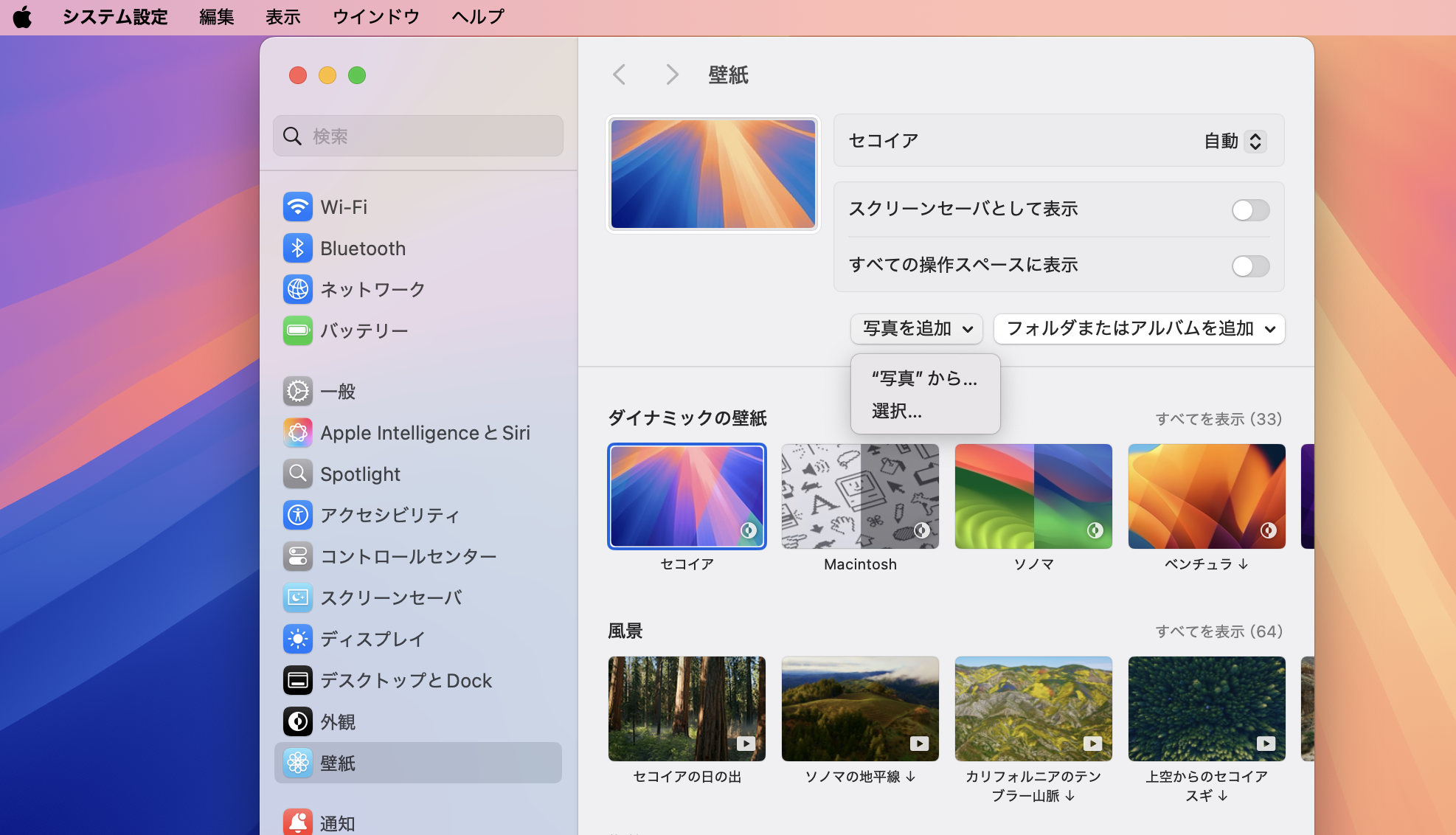
- Inconsistent Application: Sometimes, selecting an image via
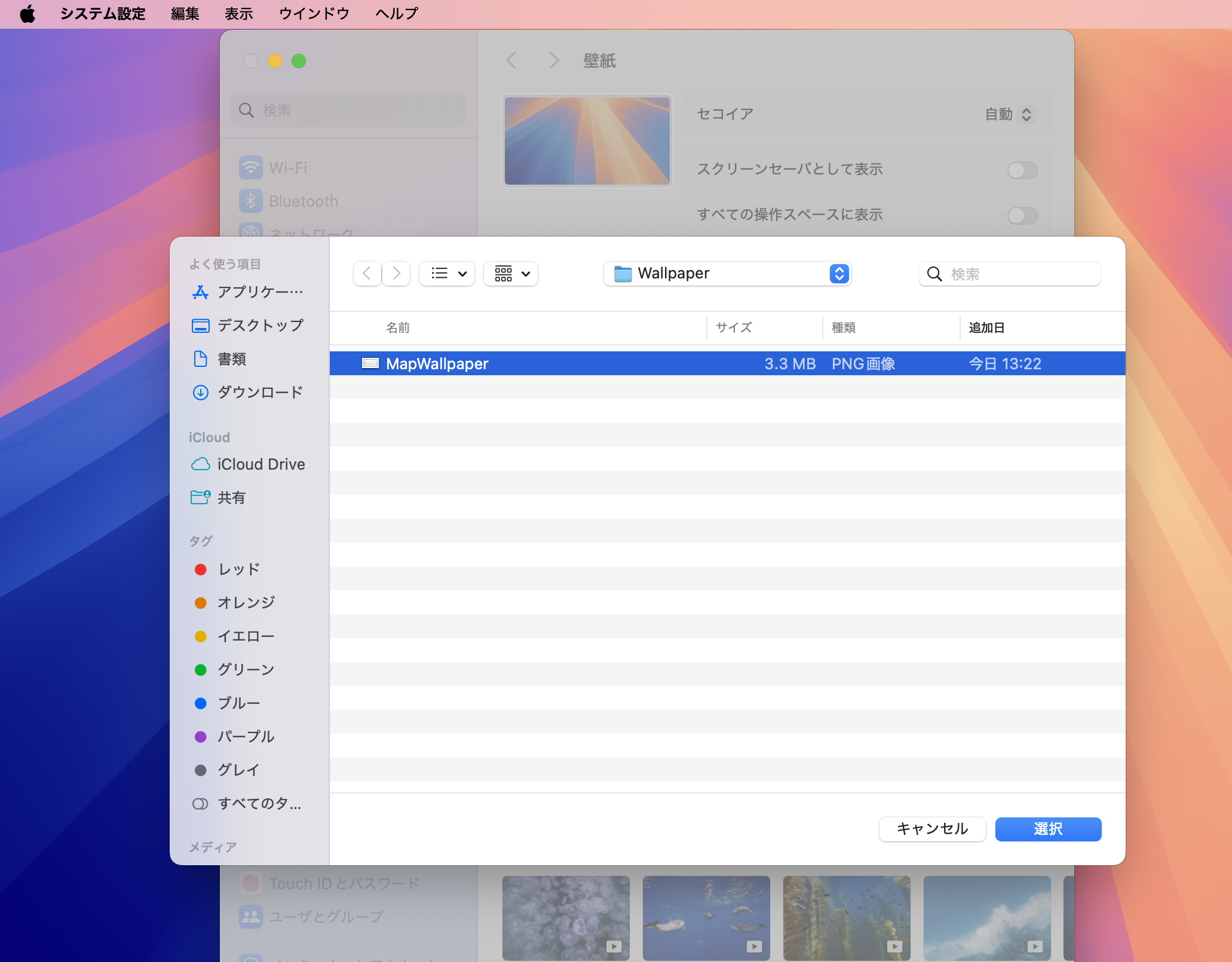
System Settings>Wallpaper> "Add Photo" would not immediately apply it to the desktop. - Settings Resetting: Even if the setting was successful temporarily, the custom wallpaper would disappear and revert to the default one after restarting the MacBook.
- Low Reproducibility: The process was unreliable; sometimes it worked, and other times it failed no matter how many times I tried.
4. What I Tried and the Results
To resolve the issue, I tried standard setting methods and file modifications, but none of them solved the problem.
| Attempted Action | Details | Result |
|---|---|---|
| Setting via System Settings | Selected a file from System Settings > Wallpaper > Add Photo. | Did not apply, or was reset after a restart. |
| Changing the image file extension | Converted the image to common formats (e.g., .jpg, .jpeg, .png, .heic, .tiff) and tried again. | Changing the extension did not improve the situation. |
| Changing the image file location | Moved the image file to locations easily accessible by the OS, such as the Desktop, Documents, or Pictures folder. | The stability did not change based on the file location. |
5. The Solution: Using Finder's "Services" Feature
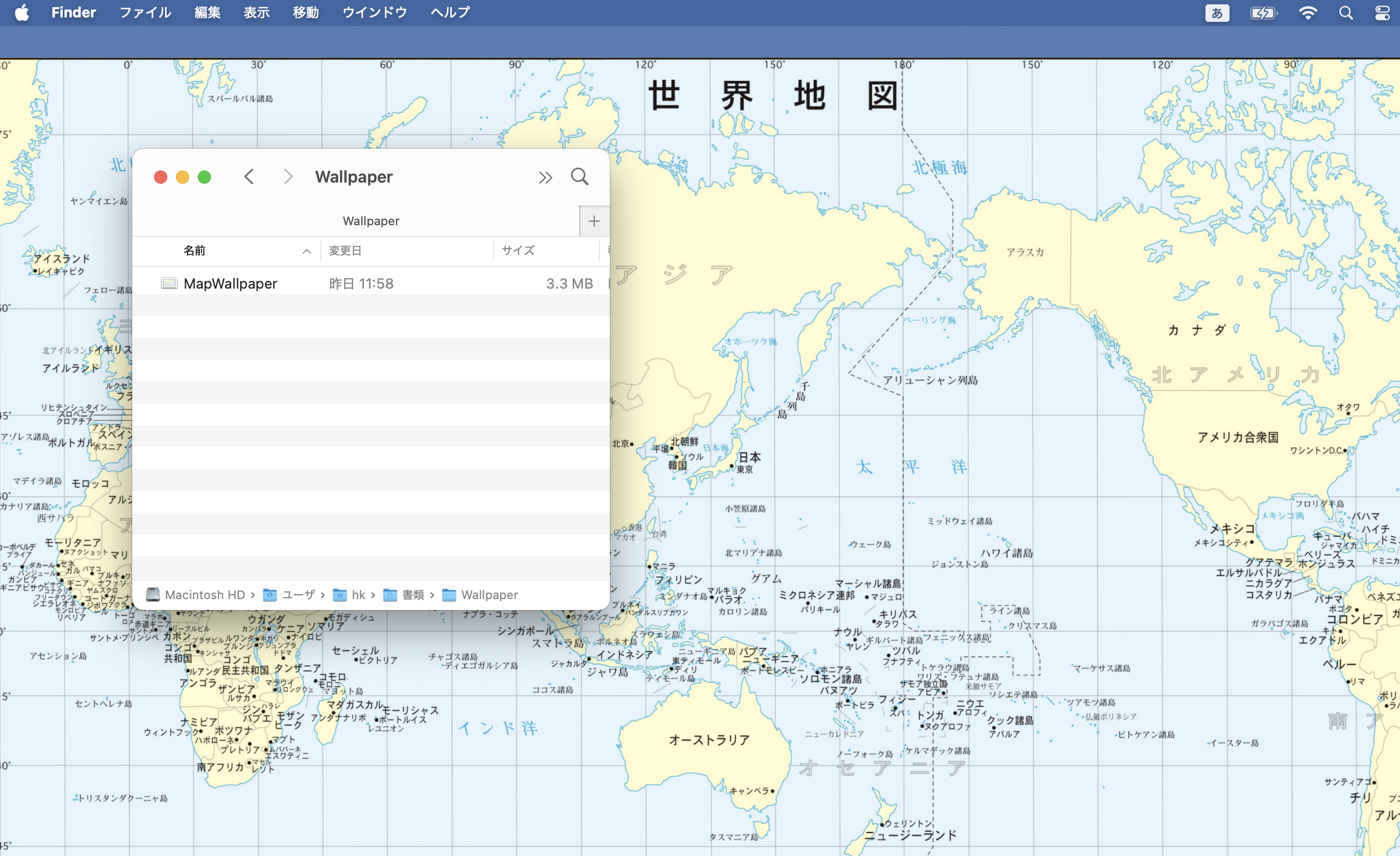
Since the standard method through System Settings was unreliable, I tried using the "Services" feature in Finder's context menu (right-click menu). This method worked reliably, and the setting was retained even after a restart.
Solution Steps
Following these steps will bypass the issue and set your wallpaper correctly.
-
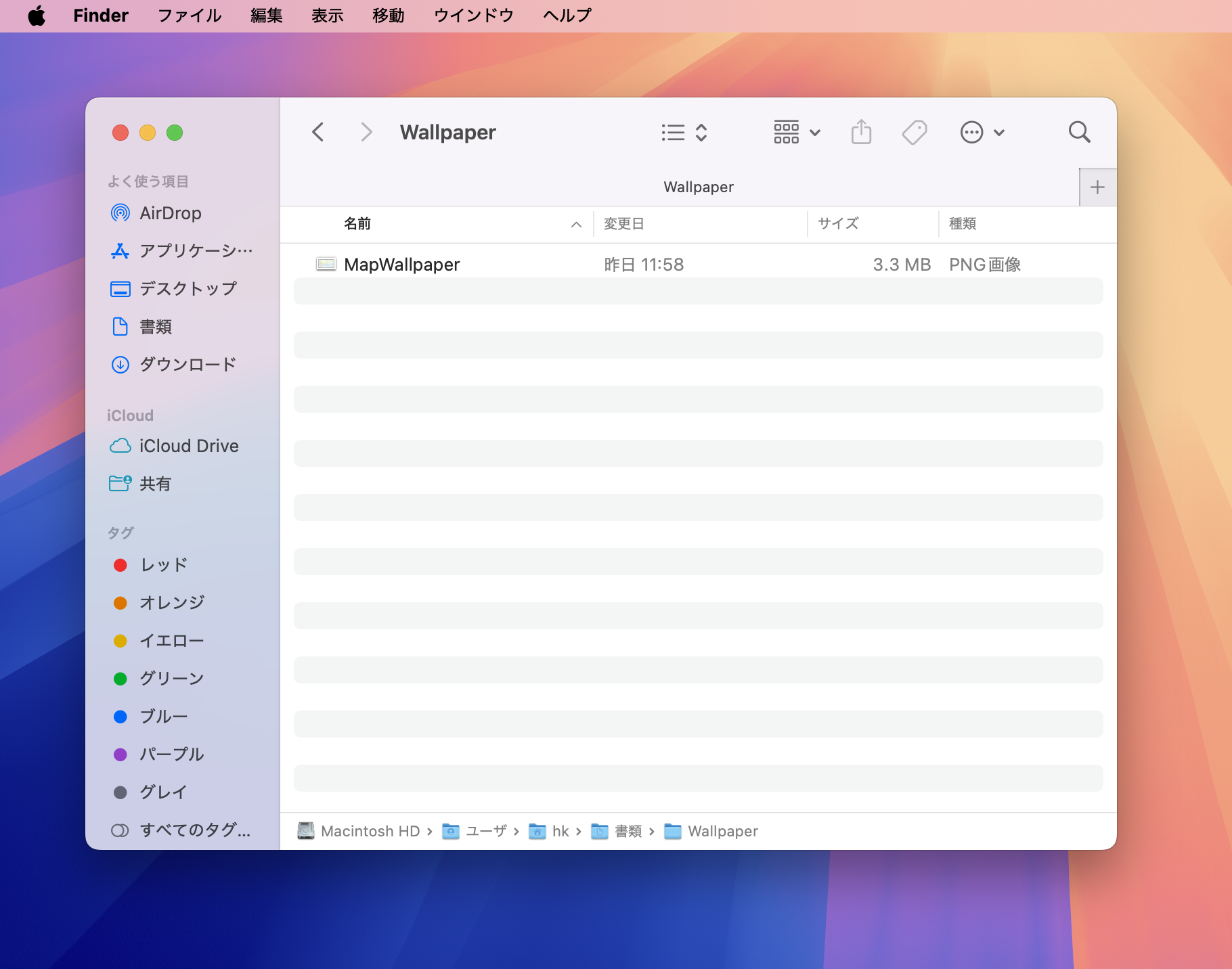
Open Finder
-
In Finder, select the image file you want to set as your wallpaper.
-
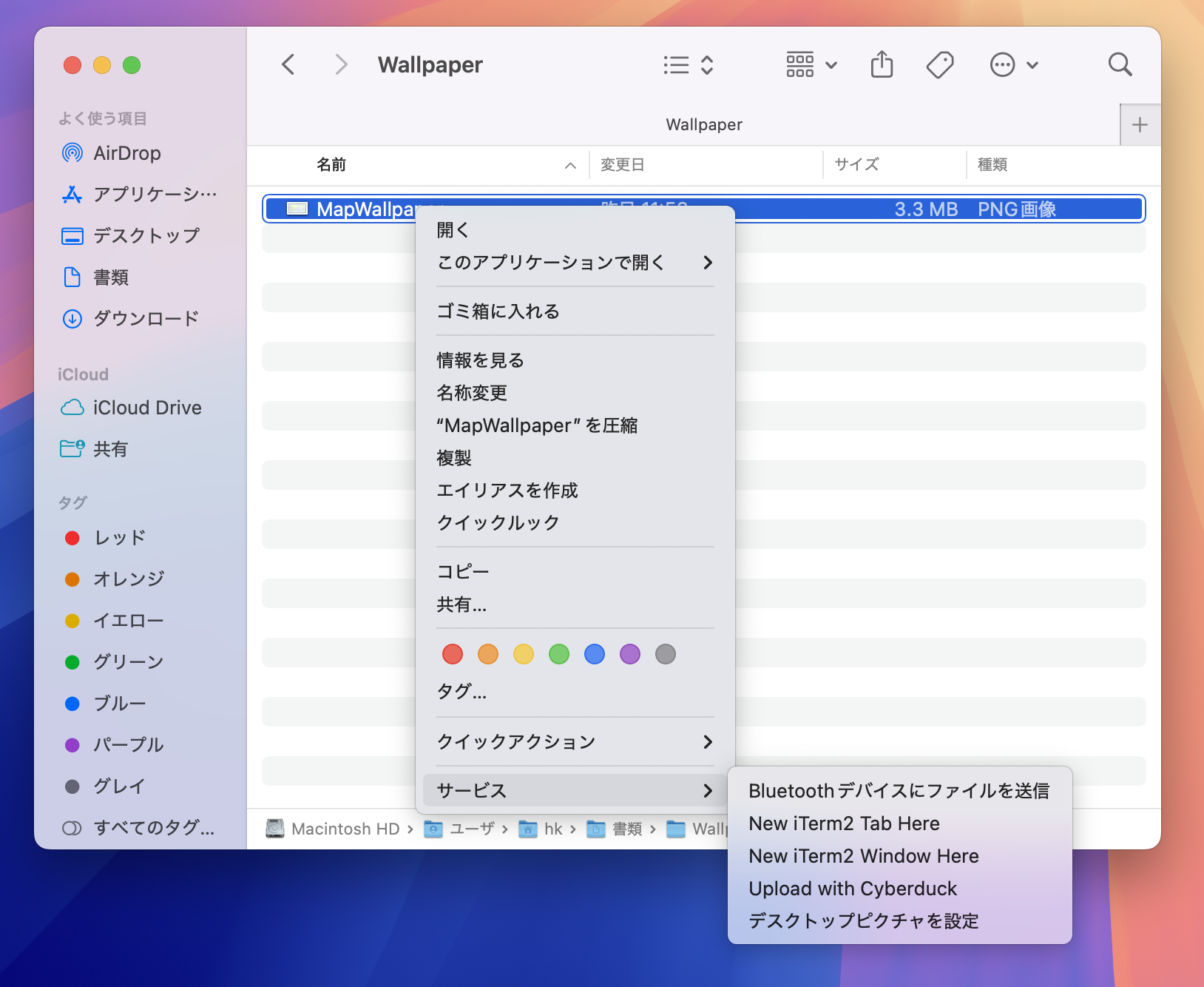
Right-click (or Control-click) the image file to open the context menu.
-
From the menu, select "Services".
-
From the "Services" submenu, choose "Set Desktop Picture".
6. (For Reference) Why Does This Method Work Reliably?
This is just speculation, but the unreliability when setting wallpaper via the "System Settings" app might be due to issues with its sandboxed environment or file access permissions, causing it to fail to correctly read the image file path.
On the other hand, Finder's "Services" feature likely interacts with the file system at a deeper, more fundamental OS level. This allows it to reliably identify the selected image and register it as the desktop picture.
Conclusion
By following the steps described in this article, you should be able to bypass the unstable behavior of System Settings and reliably set and retain any image as your wallpaper. This is one of those settings that can be surprisingly difficult to figure out on your own, so I hope this guide helps others who have encountered the same frustrating issue.