How I Freed Up 109GB of Disk Space on My M1 Mac | Cleaning Up the ScreenRecordings Folder

1. Introduction
My MacBook operates smoothly, but I recently wondered, "Are there any unnecessary files or settings accumulating where I can't see them?" prompting me to perform a system health check using the Terminal.
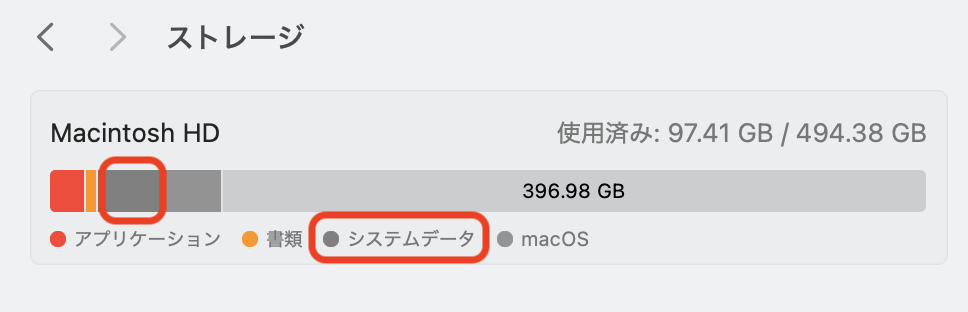
While there were no security issues, I discovered a shocking fact regarding my storage. A single hidden folder, invisible from the standard System Settings, was consuming a massive 109GB of space.
In this article, I will share the story of how I identified the cause of this storage hog and the steps I took to recover over 100GB of free space.
2. Environment
| Item | Details |
|---|---|
| Model | MacBook Air (M1, 2020) |
| OS | macOS Sequoia 15.1 |
3. Discovery: System Diagnosis via Terminal
Step 1: Security Check
Initially, my goal wasn't to free up space but to check for suspicious processes. I used the Terminal to check the following:
- Programs that run automatically at startup (
LaunchAgents) - Processes consuming abnormal amounts of CPU
- Unknown browser extensions
Command used:
ls -la ~/Library/LaunchAgents /Library/LaunchAgents /Library/LaunchDaemons
The result showed many profiles for development tools and browsers, but there were no traces of suspicious programs or malware. The system was in a clean state.
Step 2: Deep Dive Storage Diagnosis
Next, I decided to check the Library folders, where details are often obscure in the GUI "Storage Management" screen. I ran a command to display the top 20 folders consuming the most space.
du -sh ~/Library/* 2>/dev/null | sort -hr | head -20
The output revealed an unexpected result.
109G    /Users/[username]/Library/ScreenRecordings
7.5G    /Users/[username]/Library/Application Support
9.9G    /Users/[username]/Library/Containers
...
"ScreenRecordings" alone was 109GB. This single folder was occupying about a quarter of my entire disk.
4. The Cause: "Ghost Files" from Screen Recordings
I checked the contents of the ~/Library/ScreenRecordings path.
open ~/Library/ScreenRecordings
Inside the folder, there were only 3 video files, but each was about 30GB to 40GB in size.
Why were they here?
Upon checking the content, I realized these were recordings of meetings from my previous job. At the time, I frequently used the screen recording function for work, but these were files I had no memory of saving.
After researching, I found that this folder is the "temporary save location" macOS uses during screen recording. Normally, files are moved to a specified location (like the Desktop) after recording stops, but in the following cases, they can get left behind:
- The app or OS crashed during recording.
- The Mac was closed (sleep mode) before the save process completed.
- A long recording session failed to export properly.
It seems that for some reason, the save process for these meetings never completed, and they remained quietly as temporary "ghost files."
5. Solution and Results
Procedure: Deleting Unnecessary Files
After previewing the files to confirm they were old, unnecessary data, I deleted them immediately via Finder.
I also used the tmutil command to clean up old Time Machine local snapshots just in case.
Cleanup Results
Before: Storage usage: System data was pressing on the limit, leaving little free space.
After:
Filesystem     Size   Used   Avail Capacity
/dev/disk3s1s1 460Gi  15Gi   366Gi      4%
Free Space: 366GB (Only 4% usage)
By simply deleting three unnecessary files, I created over 100GB of free space, significantly improving the storage environment.
Summary
If you feel like your Mac is running out of space but you can't find any large files, it is worth checking the hidden folders in your Library, not just your standard document folders.
- Location to check:
~/Library/ScreenRecordings - How to check: In the Finder menu, go to "Go" > "Go to Folder..." and enter the path above.
Especially if you frequently use screen recording for work or personal use like I do, there is a possibility that failed temporary files are still lurking there. Even if you are not comfortable using the Terminal, checking this specific folder is easy to do. Why not give your Mac a quick check-up?