Side-by-Side Translations on the iPad's Big Screen. "Yakubun" Now Supports iPad and Can Layer Word Glosses on Line and Paragraph Translations

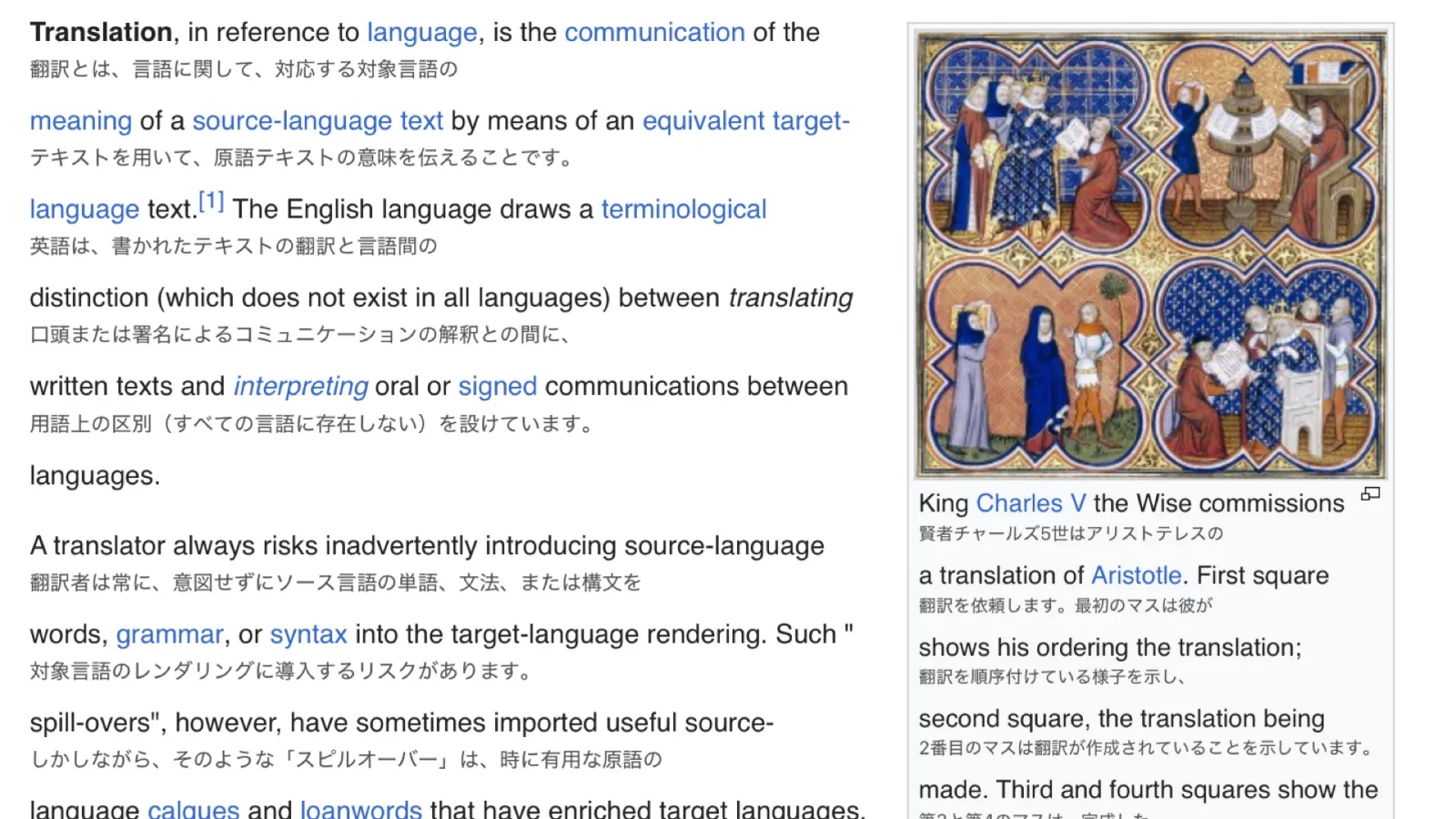
I've released three updates to "Yakubun" (訳文), an app that lets you read English pages in Safari with a Japanese translation alongside the original. The two biggest changes are:
- iPad support (1.0.3). You can now use all four views (between lines, paragraph, word, and translation only) in Safari on iPad.
- Word glosses can now be layered on line and paragraph translations (1.0.4). You can check the meaning of a sentence and the meaning of each word on the same screen.
I also smoothed the button's movement and fixed an issue where the buttons didn't respond on some sites. As before, translation runs entirely on the device, and the article text is never sent anywhere.
Please note that the app is available only on the Japanese App Store, its interface is in Japanese, and it translates from English to Japanese only.
If you already use Yakubun, just update it on the App Store (the latest version is 1.0.4). Your settings carry over.
📱 Download
訳文 on the App Store (Japan)📖 Getting started and FAQ
Yakubun Support
If something doesn't work, start here.
iPad support
In addition to iPhone, Yakubun now works in Safari on iPad (iPadOS 26.4 or later). On the larger screen, you can comfortably read English news and papers with the original and the translation side by side.
Safari on iPad opens pages in their desktop layout rather than their mobile layout. Left as is, the whole page looks shrunk, and so do the "訳" button and the menu. Yakubun now keeps the button and the menu the same size on screen on every page. The same applies when you choose "Request Desktop Website" on iPhone or pinch to zoom in or out.
On pages where paragraphs wrap around images, such as the desktop version of Wikipedia, translations sometimes appeared far from their paragraph. They now appear right below the paragraph.
Getting started on iPad is the same as on iPhone: download the languages in the app, turn on the "訳文" Safari extension, and tap "訳" at the bottom left of an English page.
Word glosses on top of line and paragraph translations
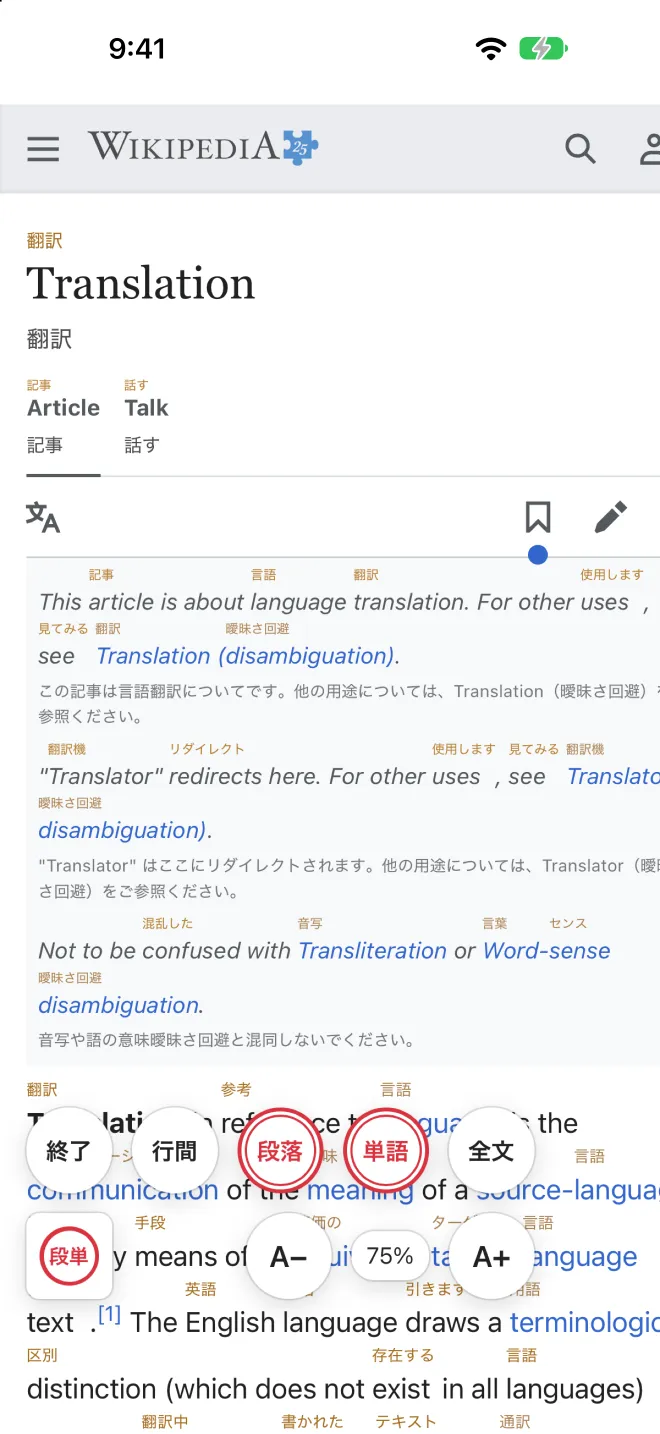
The word view used to show small translations under English words without paragraph translations. That suits practicing reading English on your own, but when you knew what a word meant and wondered what the whole sentence meant, you had to switch views.
In 1.0.4, word glosses can be shown on top of line and paragraph translations. Seeing words and their context on the same screen helps when studying English, and when reading technical documents or papers full of unfamiliar words.
How to use it
- Tap "訳" and start translating with "行間" (between lines) or "段落" (paragraph).
- Tap the floating button to open the menu, then tap "単語" (word).
| In the menu | Result |
|---|---|
| Tap "単語" while translating in "段落" | Word glosses are layered on the paragraph translations (the button shows "段単") |
| Tap "単語" while translating in "行間" | Word glosses are layered on the line translations (the button shows "行単") |
| While layered, tap either of the two highlighted items | Only the one you tapped stays ("段落" leaves paragraph translations only, "単語" leaves word glosses only) |
| Switch to "全文" (translation only) | Word glosses are turned off |
I also changed how word glosses are shown:
- Word glosses now appear above the English word (where furigana would go).
- While layered on line or paragraph translations, word glosses are shown in amber so they are easy to tell apart from the gray line and paragraph translations.
The menu you see when you first tap "訳" still asks you to pick one of the four views. To layer word glosses, start translating first, then add "単語" from the menu.
Other improvements
Smoother button movement.
- Buttons and menu items shrink slightly while pressed and spring back when released, so you can tell your tap registered.
- When you drag the button and let go, it glides to the edge of the screen with the momentum of your finger. It goes to the edge you flick toward, so even if you release it on the left half of the screen, a flick to the right sends it to the right edge.
- The button remembers its position and appears in the same place on other pages and other sites.
- The button now rests a little farther from the screen edge, so dragging it is less likely to trigger Safari's back/forward swipe.
- While zoomed in with a pinch, the button returns into the visible area once you stop scrolling.
The app now links to the support and privacy policy pages. The app screen now has links to the support page and the privacy policy.
Bug fixes
- Fixed an issue where the "訳" and menu buttons sometimes didn't respond on some sites, such as pages with video players, or on heavy pages right after loading (1.0.2).
- Fixed an issue where translations of paragraphs next to images sometimes appeared far from the paragraph (1.0.3).
Changes by version
1.0.4 (November 18, 2026)
- Word glosses can now be layered on line and paragraph translations
- Word glosses now appear above the English word
- Made the view menu easier to use
1.0.3 (November 18, 2026)
- Added iPad support
- Smoothed the button's movement when pressed and dragged. It now goes to the edge you flick toward
- The button remembers its position and appears in the same place on other pages
- Moved the button a little away from the screen edge so it is less likely to clash with Safari's back/forward swipe
- On desktop-layout pages and when zoomed in, the button and menu now appear at their normal size within the visible area
- Fixed translations of paragraphs next to images sometimes appearing far away
1.0.2 (November 14, 2026)
- Fixed the "訳" and menu buttons sometimes not responding on some sites or on heavy pages right after loading
- Added links to the support and privacy policy pages in the app
Features up to 1.0.1 (tucking the button away at the screen edge, turning the "訳" button on or off, and more) are covered in the release post and on the support page.
Requirements
- iPhone (iOS 26.4 or later) or iPad (iPadOS 26.4 or later)
- Translation is English to Japanese only
- Available for free on the Japanese App Store
As before, the article text and the translation are never sent anywhere and are never stored. The only new settings saved are the button's position and whether word glosses are layered, both kept in the Safari extension's storage on the device. See the privacy policy for details.
For bug reports or requests, please use the email address on the support page. I'll keep making it a little easier to read, guided by your feedback.